

Searching Transactions
Search and filter read-only transaction data in the Newline Dashboard.
Use the Newline Dashboard to search and filter transaction data for investigations, customer inquiries, and program activity reviews.
Common Use Cases
- Investigate an unsuccessful transaction
- Locate a transaction for a customer inquiry
- Review transactions within a specific time period
- Analyze activity by transaction type or payment rail
Using the Transaction Search Bar
To begin searching, use the transaction search bar located in the top navigation header.
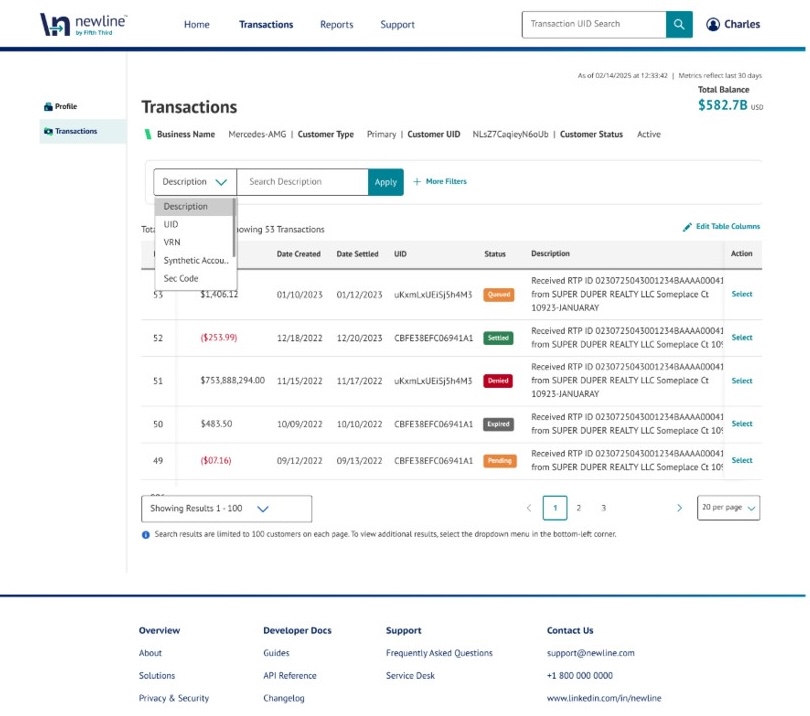
You can search using the following identifiers:
- Transaction UID
- IMAD
- Network ID
- Sec Code
- Transfer ID
- UETR
- VRN (Virtual Reference Number)
Expanded Filters
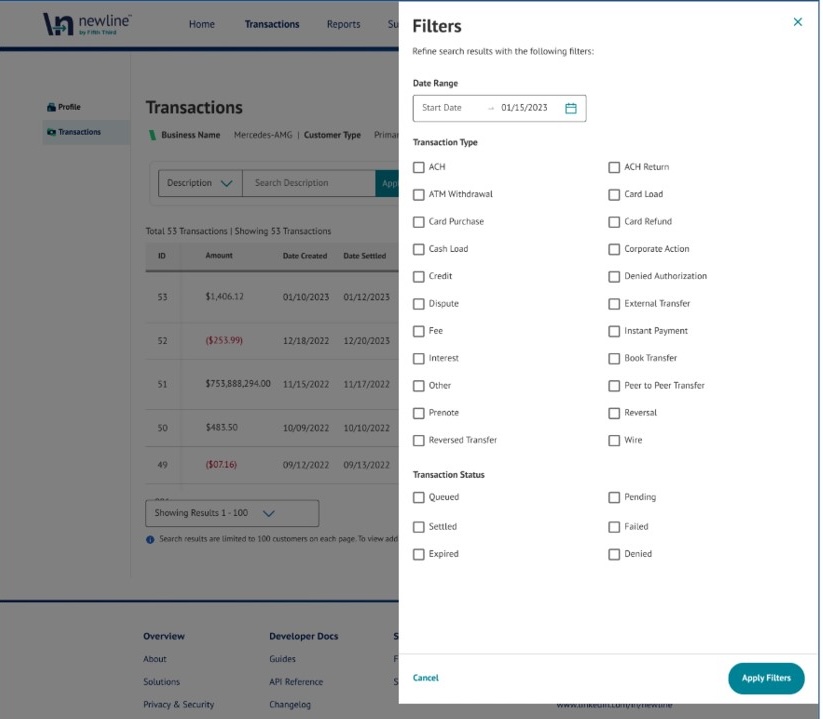
Filters allow you to refine search results and reduce large datasets into manageable views.
To narrow results, apply:
- Date Range – Limit results to a specific time window
- Transaction Type – Filter by payment type (ACH, ACH Return, Wire, Card Load, Card Purchase, Card Refund, etc.)
Use filters when:
- Searching without a specific transaction ID
- Investigating trends or groups of transactions
- Reviewing activity over time
How to Search
- Enter a transaction identifier (e.g., Transaction UID, IMAD, or Network ID) in the transaction search bar, or
- Apply filters such as date range or transaction type
- Review the results and select a transaction for additional details
Tip:
- Use Transaction UID when you have a known transaction
- Use filters when exploring broader activity
Search Results
Search results appear after submitting a query in the transaction search bar.
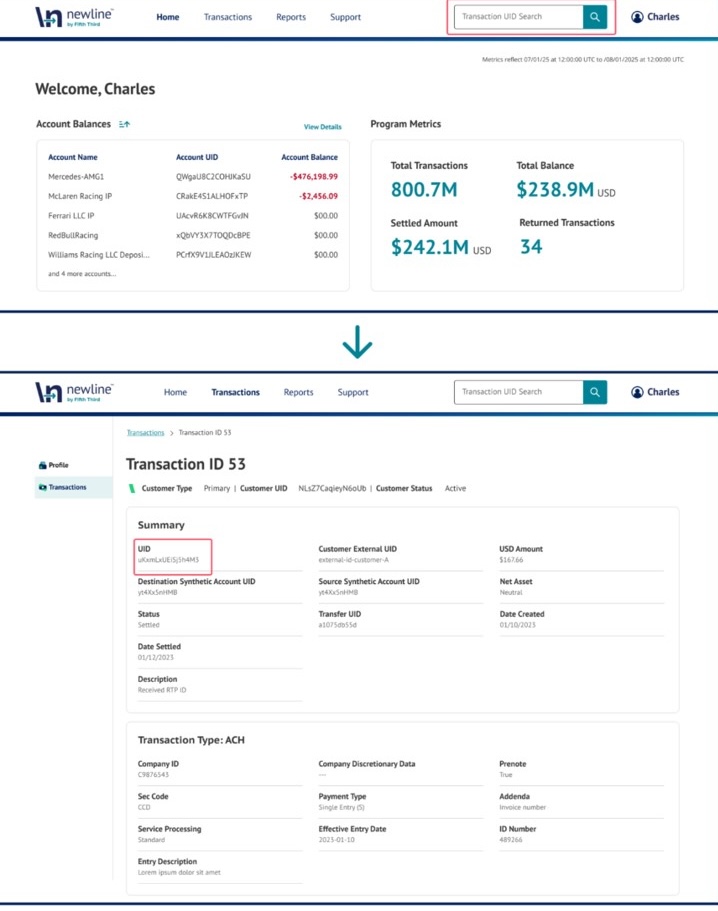
Results display important transaction information, including:
- Transaction Status
- Sender and Receiver Information
- Transaction Metadata
Understanding Transaction Status
Transaction status indicates where a transaction is in its lifecycle. Common statuses include:
- Pending – Transaction is in progress
- Settled – Transaction has successfully completed settlement
- Failed / Returned – Transaction did not complete successfully
Use the View All option to expand the results table and access additional details and context for each transaction.
Updated 5 months ago